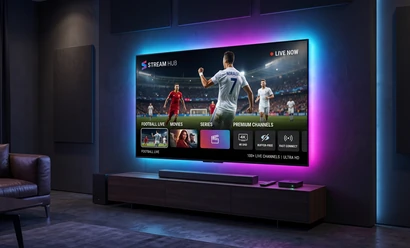
IPTV Setup on Android TV: Installation and Settings


Euro TV Pro Editorial Team
Android TV and Google TV are the TV platforms with the greatest app flexibility. Because the app store is broad, there are many player options, which makes choosing the right player important during setup.
In this article we walk through IPTV setup on Android TV devices step by step, covering entering the login details, remote installation methods and performance settings.
Preparation before setup
Android TV-based devices can be televisions, media players or set-top box style units. The setup flow is the same on all of them; the difference appears in how the app is installed, from the store or from a file.
-
Device: it must be based on Android TV or Google TV.
-
Account: the app store account must be signed in.
-
Connection: the network connection should be verified before setup.
-
Details: the playlist address or the account details should be ready.
Step 1: Install the player
The player app is installed from the device's store. For apps that are not in the store, remote loading or an external source can be used; with these methods, make sure the app comes from a trusted source.
-
Store: the safest and fastest installation method.
-
Remote loading: considered when store access is restricted on the device.
-
Freeing space: storage can be increased by removing unnecessary apps.
-
Update: after installing the player, check for updates.

Step 2: Enter the login details
The most critical step of the setup is entering the login details correctly. Instead of typing with the remote, checking the details carefully prevents problems caused by mistyped entries from the start. If the playlist stays empty, the address and the connection should be checked again.
| Step | What to do | Checkpoint |
|---|---|---|
| 1 | Player is installed | Does the app open on the device |
| 2 | Login details are entered | Are the fields complete |
| 3 | Playlist loads | Do the categories appear |
| 4 | Player settings are configured | Are switching and quality settings suitable |
| 5 | Stream is tested | How is channel opening and smoothness |
Step 3: Adjust the player settings
After setup, the player settings should be reviewed. Settings such as channel switching speed, buffer duration and interface layout make a clear difference in daily use. On Android TV devices, well-organised channel groups matter so that navigating with the remote stays easy.
-
Buffer: determines the balance against fluctuation.
-
Category: grouping the channels makes navigation easier.
-
Favourites: frequently watched channels can be moved to the top.
-
Interface: a layout suited to remote-based navigation is preferred.
-
For details, see our How to choose an IPTV player and TiviMate vs IPTV Smarters comparison articles.
Performance and device maintenance
Android TV devices slow down as the number of apps grows. A full storage area affects the player's opening and switching speeds. That is why removing unused apps and restarting the device regularly is recommended.
-
Storage: remove unused apps.
-
Background: close unnecessary running apps.
-
Restart: a weekly restart helps.
-
Wired connection: gives a fixed and stable result on media players.
-
If the stream stalls, the steps in our IPTV freezes on Wi-Fi article will guide you.
Common issues on Android TV
Symptoms are usually app-, connection- or device-related. The table below shows the first checkpoint.
| Symptom | Possible cause | First check |
|---|---|---|
| The app is not in the list | Region or store restriction | Try the search with a different name |
| The list appears empty | Login detail error | Re-enter the address and save it |
| Channels open slowly | Storage or memory is full | Remove unnecessary apps |
| Picture stuttering | Connection instability | Test with a wired connection |
| Picture and sound are out of sync | Player decoder setting | Update the player and try again |
| For setup-related issues, the steps in our playlist not loading article will guide you. |
device comparison
Android TV-based devices are advantageous in terms of app flexibility and performance. Smart TVs do not require an extra device, while phones and tablets offer portability. Which device suits you depends on your viewing habits.
Setup steps by device type IPTV setup on Smart TV, IPTV setup on Samsung TV, IPTV setup on LG TV and how to set up IPTV articles.
Frequently asked questions
Is there a difference between Android TV and Google TV?
The setup flow is largely the same. Menu names may change with the version; the app installation and the login details are entered in the same way.
Which is better: a media player or the TV itself?
For constant viewing, media players generally deliver a smoother result. For those who do not want an extra device, the TV's own app may be enough.
What should I do if the stream stalls after setup?
First check the connection and, if possible, try a wired connection. If the problem continues, review the playlist settings.
How many devices can I install it on?
Installation is not limited by the number of devices; simultaneous viewing depends on your subscription.
Sources
Official sources have been consulted for the technical statements in this article: ITU-T Y.1901 – Requirements for the support of IPTV services. These sources explain how broadcast technology generally works; for service scope and device support, see the relevant package and support pages.
Tags:

How to Set Up IPTV: Step-by-Step Setup Guide